 RouteLocker 2
Saved destinations that are ready when you are
Keep the places you drive to most close at hand. RouteLocker 2 lets you save addresses, organize them into groups, and hand directions to your favorite maps app without retyping the same stop again.
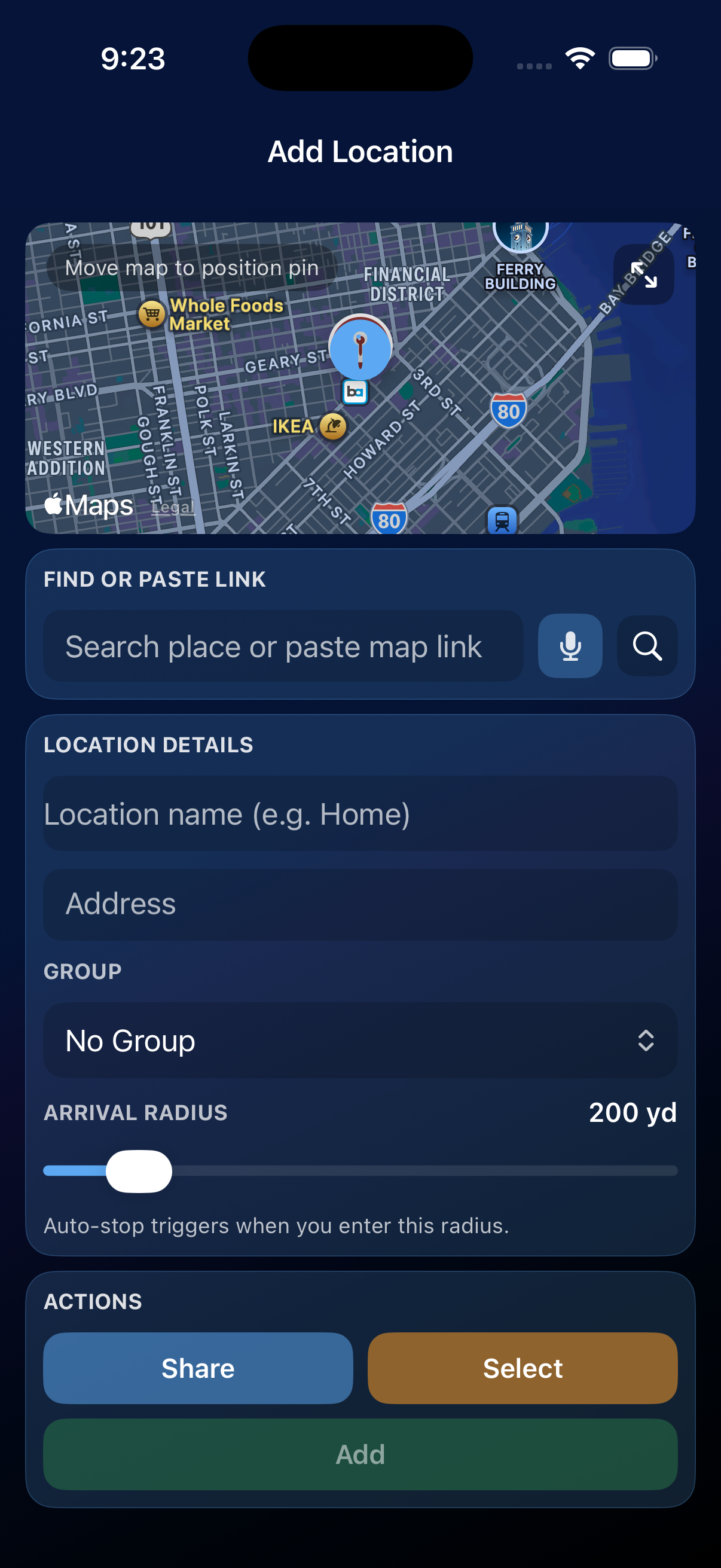
Add a destination
- Open the Destinations tab.
- Tap the add button.
- Search for an address, business, or point of interest, or drag the map pin to the exact spot.
- Name the place, choose or create a group, and set an arrival radius if needed.
- Tap Save.
Use a destination
- Select a destination to make it active on the dashboard, where ETA, remaining distance, and weather can stay visible.
- Navigate opens directions in Apple Maps, Google Maps, or Waze, depending on your Preferences.
- Auto-start can begin trip tracking when you tap Navigate, if you choose to turn it on.
- Search by name, address, or group, or hold the microphone button for voice search.
Arrival radius
The arrival radius is the zone around a destination that counts as "arrived." Use a smaller radius for exact addresses and a larger one for places like airports, campuses, or stadiums. You can set a default in Preferences and adjust it for individual destinations.
Tip: You can still record a trip without selecting a destination. RouteLocker 2 saves the drive without a destination name.