Start a trip and watch the live stats
Use the main screen to start tracking, reset the current trip, check speed, and view distance, elapsed time, average speed, and max speed.
RouteLocker lets you choose a saved destination, start a trip, watch live speed and trip stats, review past trips, add notes, and keep saved locations backed up. Use this support area to find the workflow you need without digging through every screen.
These are the parts of the app most users need help with first.
Use the main screen to start tracking, reset the current trip, check speed, and view distance, elapsed time, average speed, and max speed.
Save places with a name, notes, coordinates, and an optional group. Search them, edit them, delete them, or share a location when needed.
Use the trip logger to search recent trips, check the destination and distance, edit an entry, or export trip data as CSV or XLS.
Use Quick Guide if you want the main workflow.
Use Features if you want screen-by-screen capability details.
Use FAQ for short answers.
Use Support if you need to send a request.
If you are not sure where to begin, these are the most common support topics.
Find where the live trip metrics appear, what they mean, and how start, reset, and destination selection work together.
Learn how grouped destinations work, how to place a location on the map, and how to keep saved places clean and searchable.
Use notes when the trip entry alone is not enough and you need reminders, service details, or route-specific context saved with your records.
Check backup status, last backup time, and whether new locations were added after the last backup.
Import-and-merge combines data. Full restore replaces the current saved location set. Use the one that matches the result you want.
Review theme, metric units, max gauge speed, auto-stop at destination, and preferred navigation app settings.
These screens match the parts of RouteLocker that usually lead to support questions.
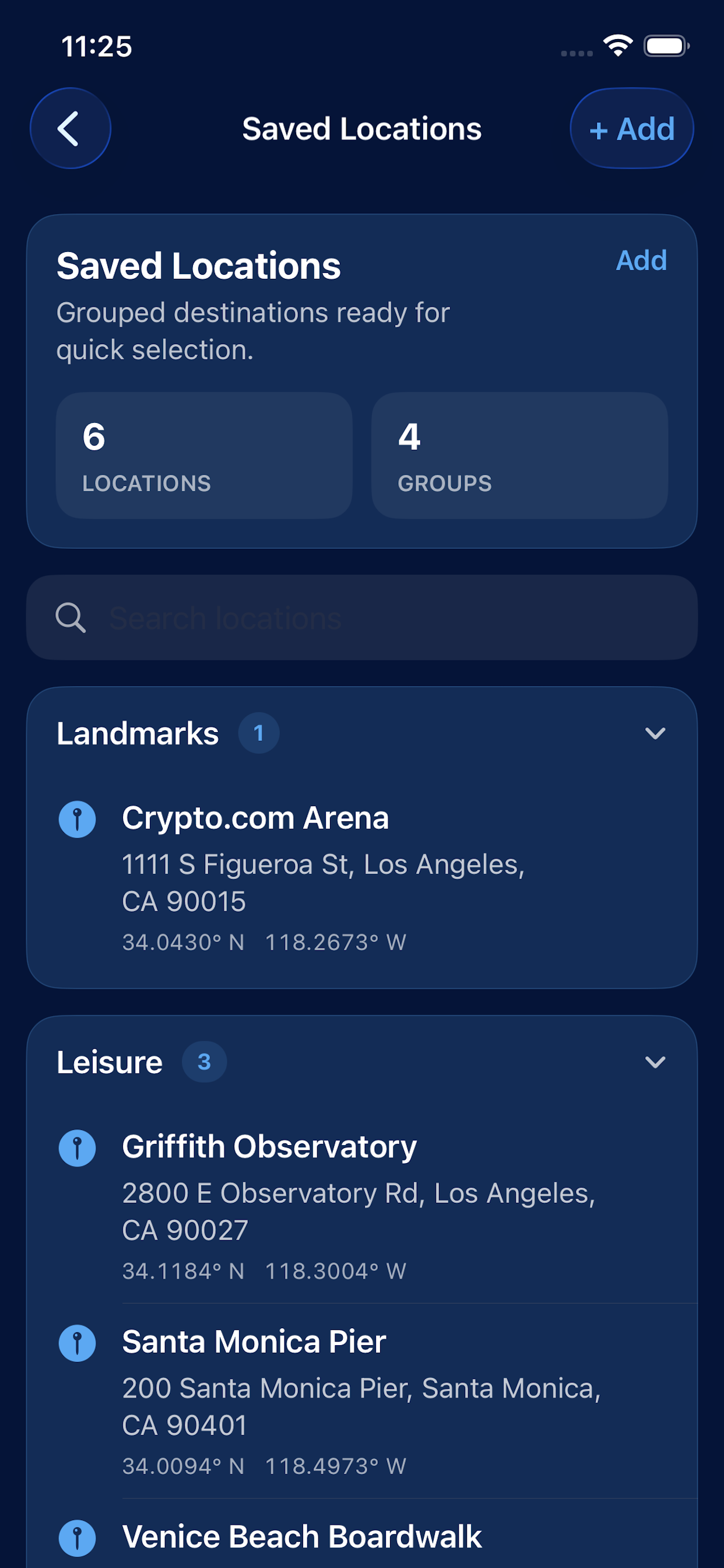
Use groups to organize destinations and search when you need a saved place quickly.
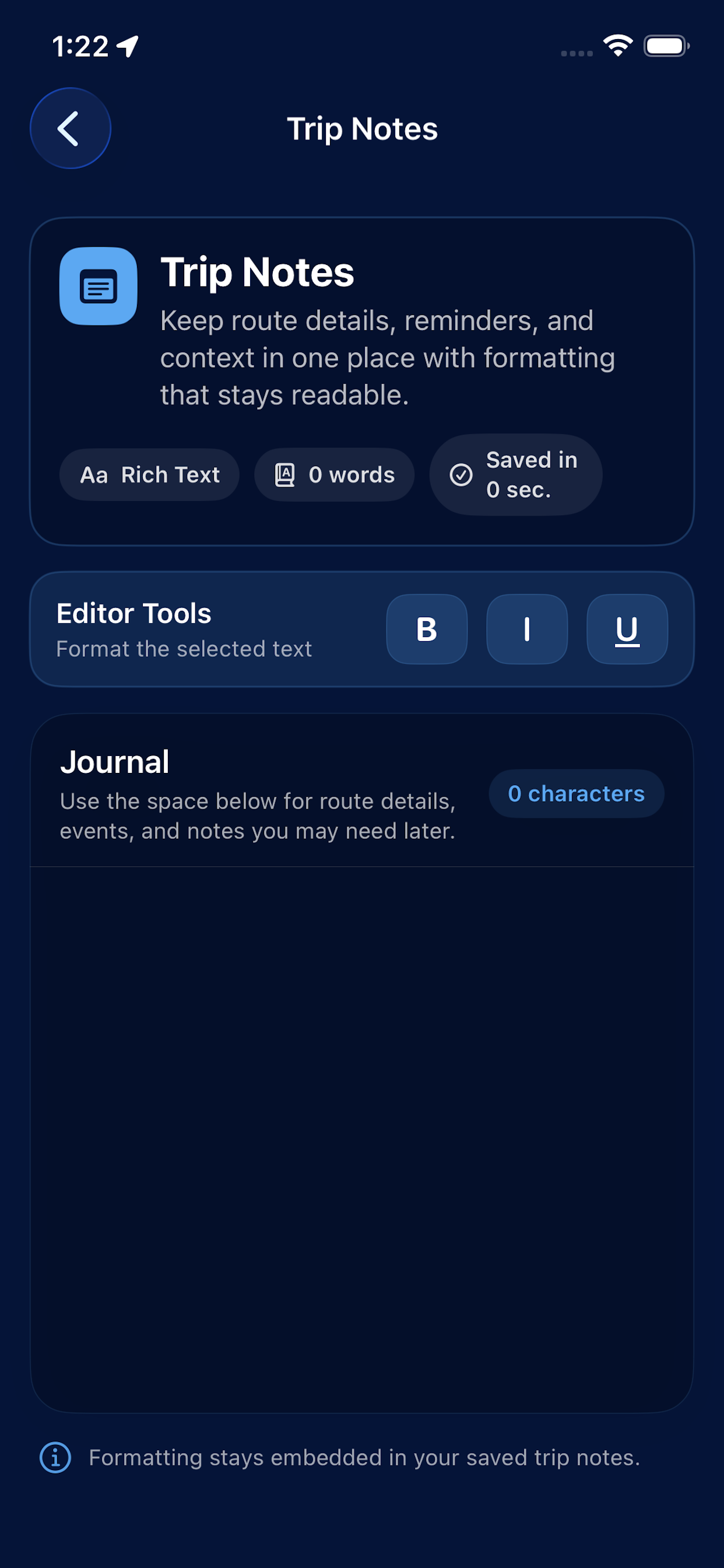
Notes are useful for context you want to keep with your trip records instead of in a separate app.
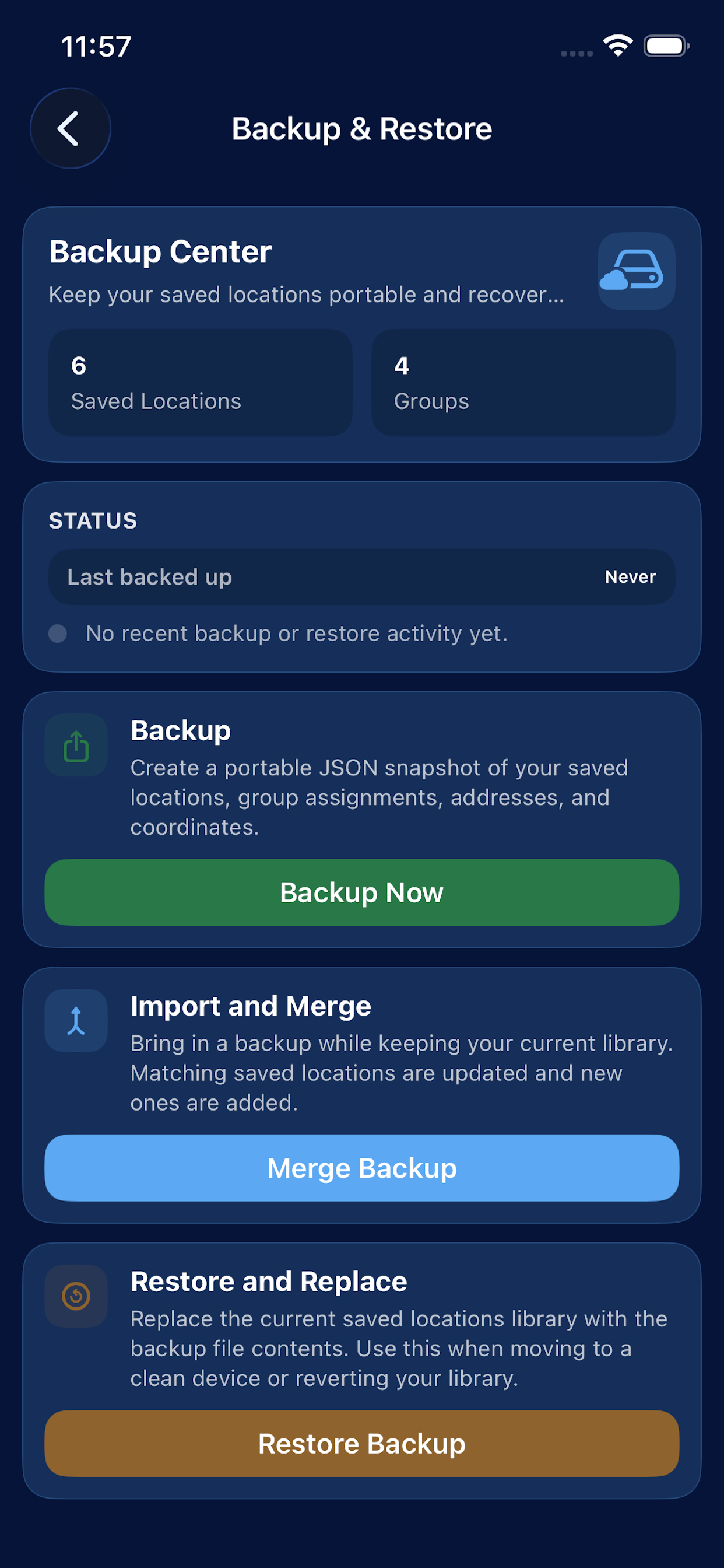
Look at backup status before importing, merging, or restoring saved locations.
If you are changing devices or cleaning up saved places, check the last backup time first. If the app shows locations added after the last backup, create a fresh backup before making larger changes.
RouteLocker does not collect your trip history, saved locations, or notes. Data only leaves the device if you choose to export it or share a location yourself.
Read the main RouteLocker workflow from picking a destination to reviewing a completed trip.
Get short answers about groups, exports, trip notes, backup scope, and restore choices.
Send a structured request with your version, device, and the exact step where the issue begins.