Feature details

What each part of RouteLocker is for.

Use this page when you need more detail than the quick guide. It explains what each area of the app does and what to expect from it.

Dashboard

Live speed and trip stats

Use the dashboard during an active trip. It shows current speed in the large gauge and can also show a compass ring on supported devices.

  • Start tracking from the main screen.
  • Reset the current trip when you need a clean start.
  • Watch distance, elapsed time, average speed, and max speed update while the trip is active.
  • Choose a saved destination from the same screen.
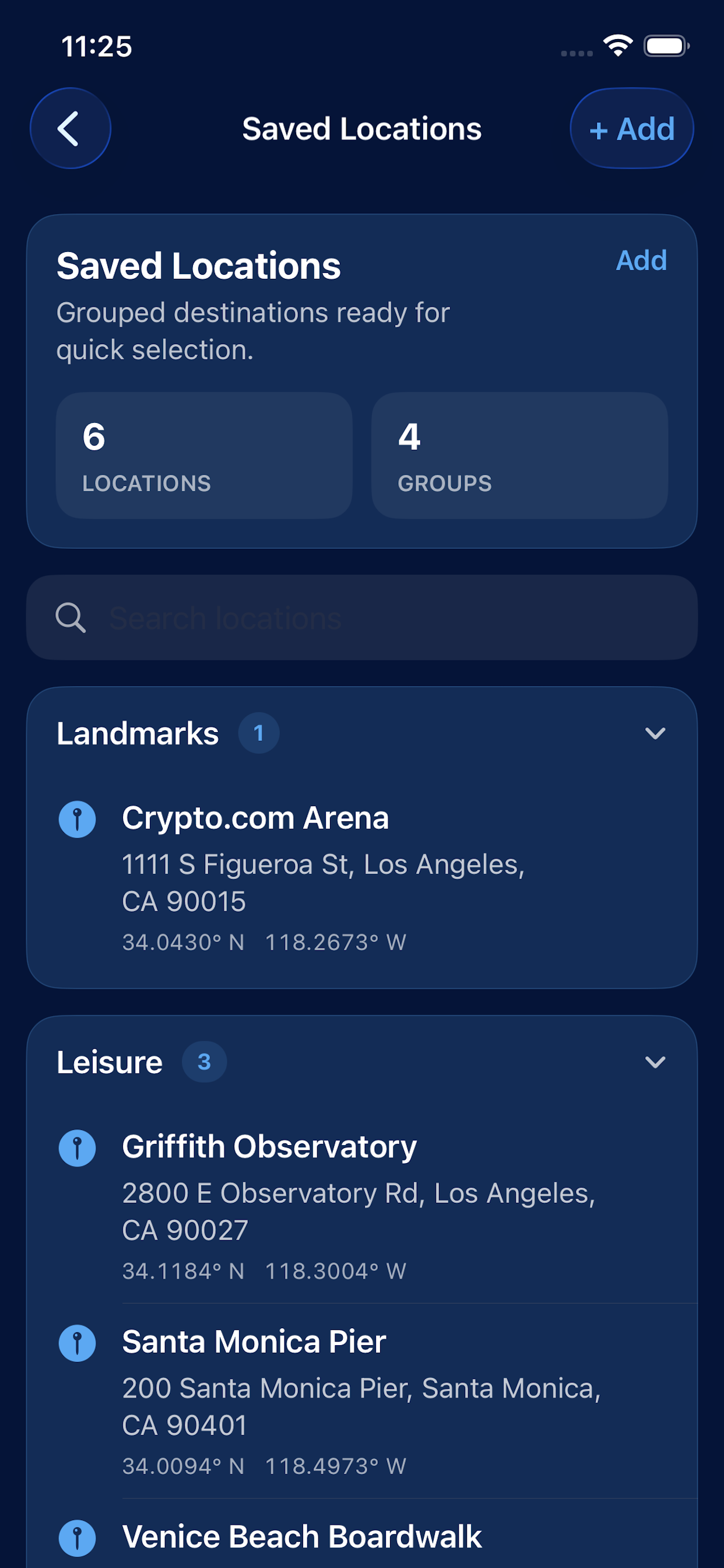
Saved Locations

Store destinations you return to often

Saved locations can include a name, notes, coordinates, and an optional group. Use search when the list gets longer.

  • Create custom groups to keep locations organized.
  • Edit or delete locations when details change.
  • Use map placement and place search when adding or correcting a location.
  • Share a saved location when you need to send it to someone else.
Trip Logger

Review completed trips

The trip logger keeps recent completed trips so you can review what was recorded and find older entries quickly.

  • Search or filter the trip list.
  • Check destination, distance, and duration in the trip summary.
  • Add a trip manually if needed.
  • Edit a trip when the recorded details need correction.
  • Export trip data as CSV or XLS.
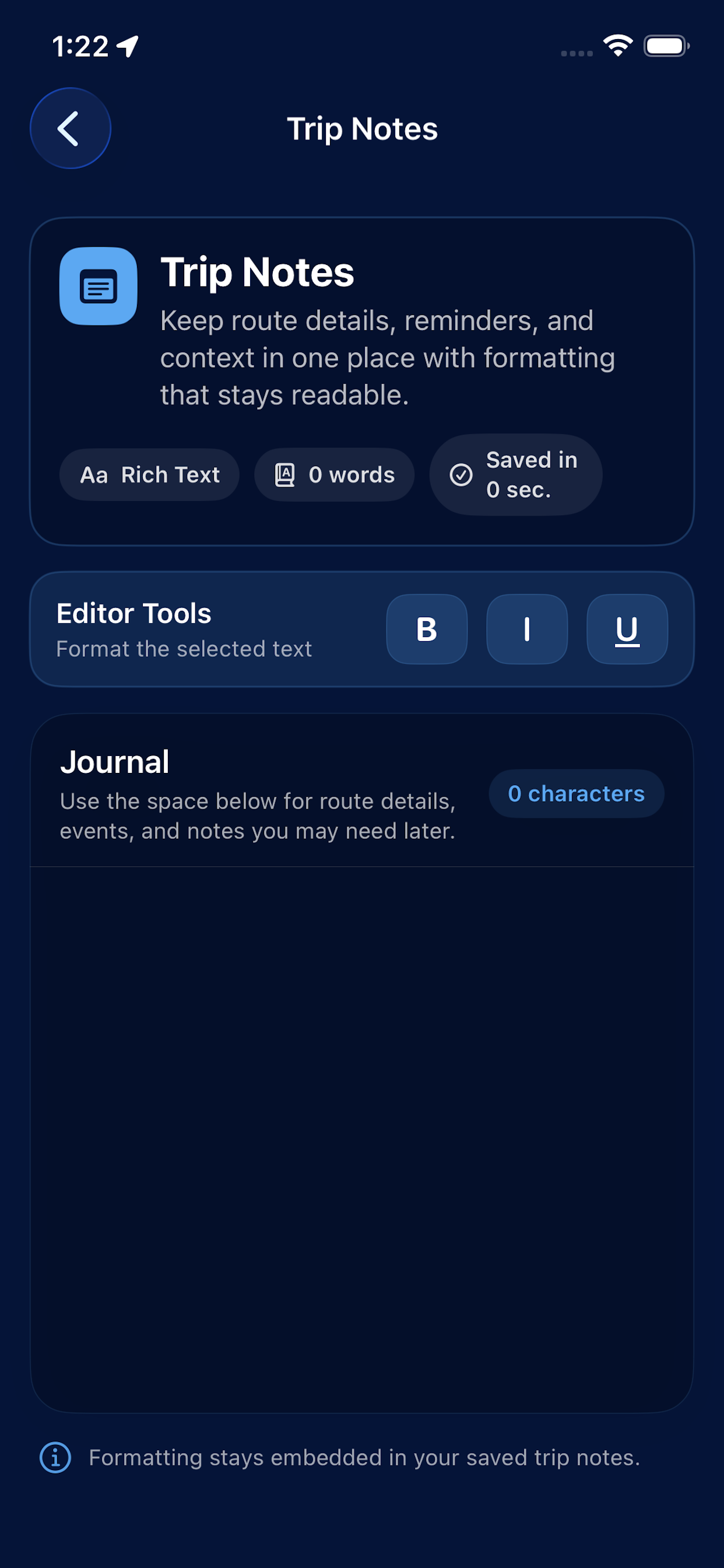
Trip Notes

Keep written details with the trip record

Use trip notes for information that does not belong in the trip summary alone, such as reminders, service details, or written route context.

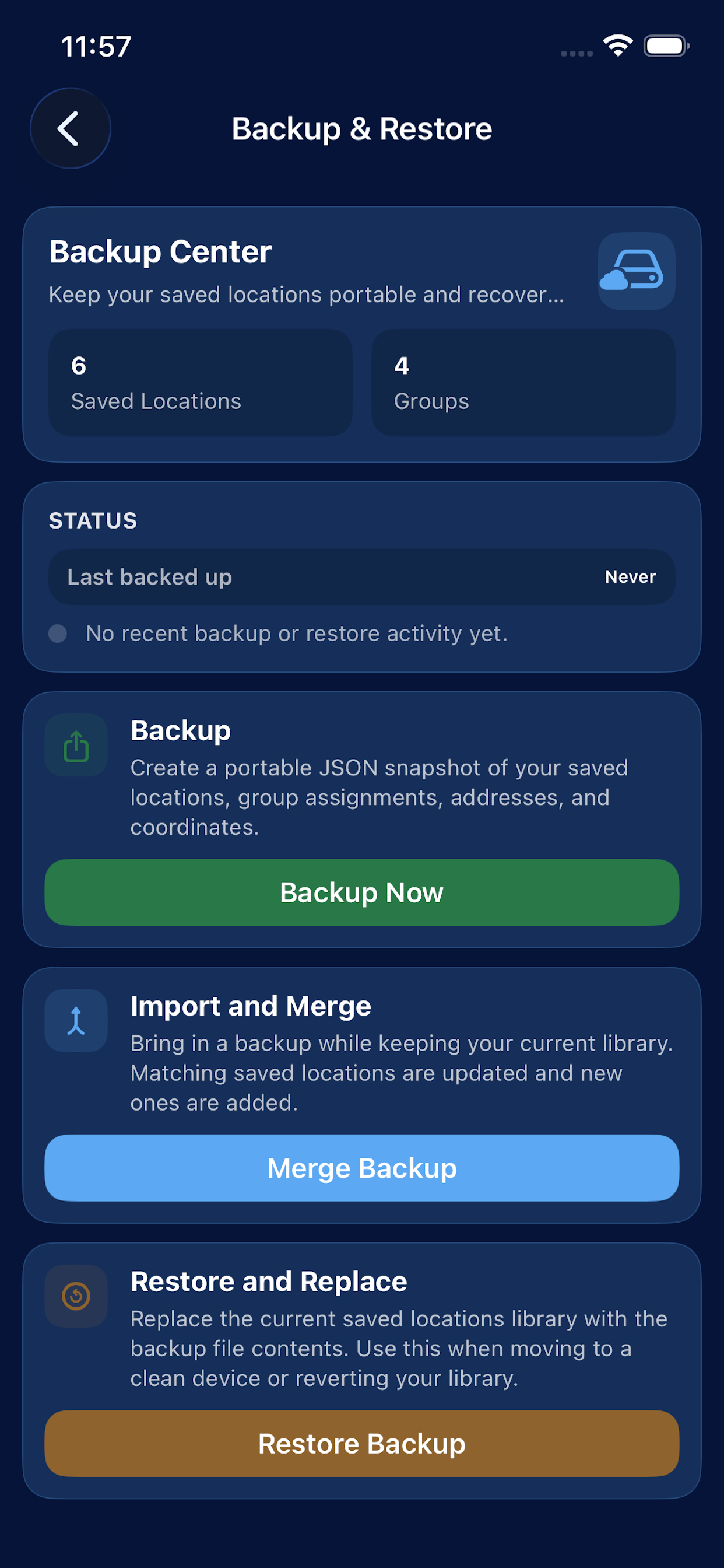
Backup & Restore

Protect saved locations and move them carefully

Backup tools currently center on saved locations data. Use them before switching devices or making major changes to saved places.

  • Check the last backup time.
  • Look for any indication that new saved locations were added after the last backup.
  • Use import-and-merge when you want to combine data sets.
  • Use full restore when you intentionally want to replace the current saved locations.
Preferences

Adjust appearance and trip behavior

Use preferences to change theme, metric units, maximum gauge speed, auto-stop at destination, and preferred navigation app.

Feature screenshots

These screens are usually the ones users ask about most.

Saved locations screen
Saved Locations

Find saved places quickly

Groups and search keep the location list manageable when you have many destinations saved.

Trip notes screen
Trip Notes

Record written context

Use notes when the trip summary is not enough and you need extra written detail.

Backup screen
Backup & Restore

Check status before moving data

Backup and restore are safest when you confirm status first and choose merge or replace deliberately.

iPhone and iPad

Screen layout changes by device.

RouteLocker is designed for both iPhone and iPad. iPhone use is portrait-focused. iPad use is more landscape-oriented and gives more room for list review and navigation.

Privacy

Trip data and saved locations are not uploaded automatically.

RouteLocker does not collect your saved locations, trip history, or notes. Data leaves the device only when you export it or share a location yourself.